When your phone gets 5G internet but your 5G home modem stays offline, the cause is usually a setup or session issue rather than “no 5G coverage.” Verizon troubleshooting tools warn that sessions can expire due to inactivity (about 2 minutes) and may require you to sign in again. That timing detail matters, because a modem can lose its session while your phone keeps working, especially after a reboot, SIM change, or account refresh.
Phone Data Vs Home Modem Paths
Your phone and your 5G home modem use different network access paths even if they connect to the same cellular provider. The phone is continuously supervised by mobile apps and OS networking, so it tends to re-authenticate and maintain sessions more often. A home 5G modem or 5G router typically has its own firmware, captive session logic, and a fixed APN or access profile pushed by the provider.
That’s why “phone works, modem doesn’t” often points to one of these categories: session/authentication, modem provisioning, or modem setup mismatch. It can also be a basic connectivity block like the modem getting RF signal but failing to bring up the data session. Wi-Fi coverage inside your home can’t explain this if you are testing the modem’s own status and the modem shows no internet uplink.
1. Session Expired After Inactivity
One common pattern is session expiry. Verizon troubleshooting screens explicitly mention that due to inactivity, your session can end in approximately 2 minutes, and that the session may expire, so you must sign in again. If your home modem’s data session is built on an interactive login, a reboot or long idle period can trigger the expired state while your phone keeps getting fresh sessions through normal traffic.
Run this experiment: reboot the modem and then immediately attempt to browse from a device connected through the modem’s router (or via Ethernet to the router, if available). If it works for a minute or two and then stops, you may be seeing session behavior rather than RF signal issues.
2. Apn, Sim, And Provisioning Mismatch
Cellular home internet still relies on correct provisioning. Your phone plan and your home modem plan are often tied to different profiles, even within the same carrier. If the modem’s SIM is missing correct provisioning, locked, swapped, or not activated for home data, the cellular radio can connect but the data session stays down.
Start with the simplest checks. Ensure the SIM is seated fully, and verify whether the modem expects a SIM type or an activation process. If you recently changed anything on your account, such as adding a new device line or replacing the SIM, re-check the modem’s “data” status, since some changes can require a fresh activation step.
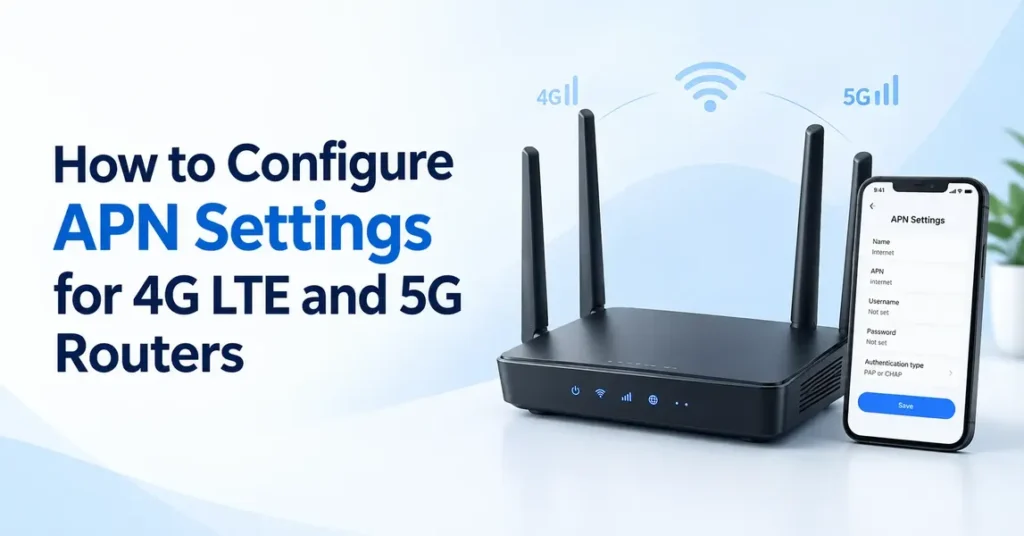
Because your research coverage is limited here, treat exact APN values as carrier-specific. Do not guess settings unless the modem’s admin page or carrier documentation tells you what to enter.
3. Router Mode, Ethernet, And Port Confusion
Many failures look like “modem doesn’t work,” but the real problem is how the router is connected. Some 5G home devices include an all-in-one router, while others require you to use a separate router. If you connect Ethernet to the wrong port, you can end up with Wi-Fi that looks up but has no uplink, or a modem that has signal but no path to your devices.
Clarify the topology first. If your modem is also the router, connect a laptop to the Ethernet port (LAN side) and compare results. If your modem is separate from the router, verify that the Ethernet uplink goes from the modem’s WAN or Internet port to the router’s WAN port, not LAN.
4. Wi-fi Setup, Bands, And Channel Interference
Wi-Fi problems can still create a misleading “modem not working” story, especially if your phone tests via cellular while the home device tests via Wi-Fi. If your modem is actually online but your router is misconfigured, your phone may work on 5G while your laptop on Wi-Fi shows “no internet.”
Check whether you are testing the modem’s uplink or only Wi-Fi connectivity. If your modem has an admin page, confirm internet status there. If not, test with Ethernet, then move to Wi-Fi.
Also consider Wi-Fi settings that can break compatibility after firmware updates. Some systems use separate SSIDs for 2.4 GHz and 5 GHz, or require specific security modes. Interference from neighbors and microwaves can raise latency and packet loss, which can look like “stuck internet.”
5. Firmware, Reboots, And Reset Strategy
Firmware bugs can keep a modem from establishing a data session even when cellular radio signal looks fine. Reboots can also be counterproductive if you keep hitting a session expiry loop. The key is to change one variable at a time and observe what changes in status LEDs and admin pages.
Start with the least risky actions. Update router and modem firmware only if your admin page indicates updates are available. Then power-cycle in the right order: modem first, then router and client devices. If you recently changed network settings or performed a partial reset, confirm your modem or router mode matches the expected setup.
Use factory reset only as a last step, because it wipes custom Wi-Fi names and security settings. After a reset, re-run basic checks (wired then Wi-Fi), and avoid restoring a saved configuration from an old setup until the base connection works.
6. Security, Login Portals, And Account Blocks
Security and account steps can break a modem’s internet access while the phone appears fine. Some services require sign-in steps or periodic re-authentication. If your modem is stuck on an “expired” or “needs sign-in” state, it can block traffic even though the cellular radio is online.
Also review local security settings. If a router has strict firewall rules, misconfigured DNS, or a filtering profile, devices may fail to reach the internet while the modem still shows connected. DNS failures are common when the router uses a bad resolver after a reset.
7. When To Escalate To The ISP
Escalation is appropriate when the modem reports no data session, the status page shows authorization or activation problems, or you can reproduce the failure immediately after clean reboots. If the phone consistently works on the same account while the home modem never gets internet, the carrier may need to refresh provisioning for that specific line or fix a carrier-side flag.
Before contacting support, gather evidence. Note the modem model, firmware version, SIM status, and exact wording from any status or error screens. Also record whether the failure occurs right after power-up or only after a short period (for example, around the inactivity window mentioned in Verizon guidance).
Escalate faster if you can confirm the modem connects to cellular but cannot pass traffic to a wired device. That narrows the issue away from Wi-Fi and into modem data session setup.
Quick Summary
Phone working while a 5G home modem does not usually comes down to a data session problem, provisioning mismatch, or a wiring and mode mix-up between modem and router. Start by testing internet on Ethernet to separate Wi-Fi from uplink issues. Then check modem status for connected vs no data session, and consider whether sign-in or activation steps are required before testing again.
FAQ
Why Does My Phone Get 5g But The Modem Shows No Internet?
Your phone can keep a working data session while the modem line needs provisioning or sign-in for data access. The modem may connect to cellular radio but fail to establish the internet session, due to activation, SIM profile, or expired session behavior. Confirm modem status and try wired testing.
What Test Should I Run First To Prove The Modem Uplink Is Broken?
Connect a laptop to the router or modem with Ethernet and open a website. If the wired device also fails while the modem reports no internet or data session, Wi-Fi is not the culprit. If Ethernet works, focus on router Wi-Fi settings, security modes, or DNS.
Does Session Expiry Affect 5g Home Internet?
Yes. If your modem works briefly and then stops, check for a sign-in or session prompt tied to the modem line and test again immediately after rebooting.