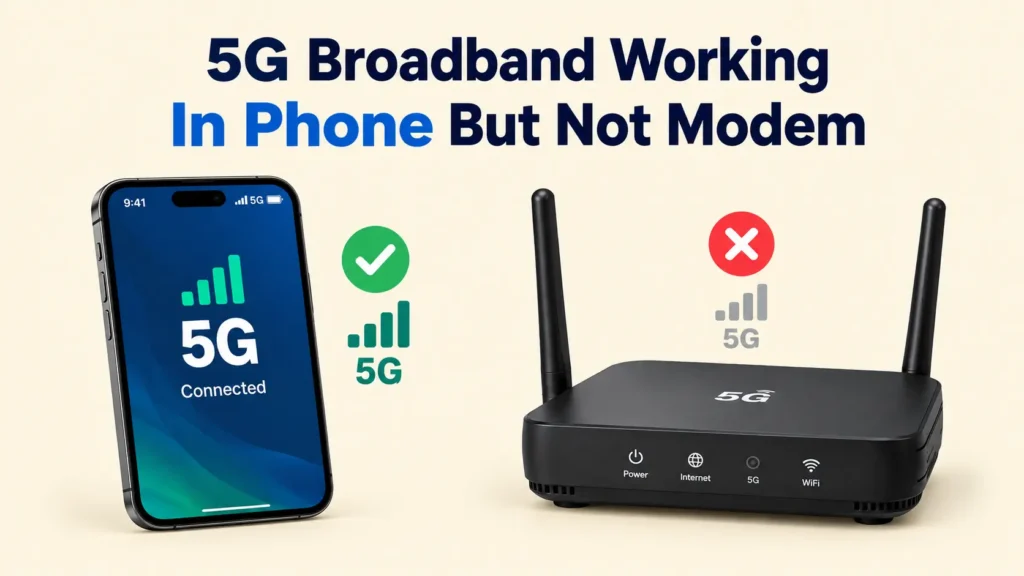
APN settings are the one thing that can make a 4G or 5G router look “connected” while still delivering zero internet. The usual first bottleneck is a SIM that is working for voice or SMS, but data APN details are missing, wrong, or mismatched to the router’s authentication and IP type. This walkthrough shows what APNs do, how to find the exact carrier values, and where to enter them in your router’s Cellular, WAN, or APN Profile screen, with quick checks to prove the router actually used the right APN.
APN configuration for 4G LTE and 5G routers: get your carrier’s APN name, APN type, authentication method (none, PAP, or CHAP), and required username/password, then enter them in the router’s Cellular or WAN APN Profile and save. If the router offers IPv4, IPv6, or IPv4v6, match your carrier guidance. After applying, confirm the data session shows “connected” and DNS resolves within 1 to 2 minutes.
Apn Vs Router Cellular Profile
APN settings tell your LTE or 5G modem router which data access point to use when it connects to the carrier network. Router “WAN/APN profiles” are the router’s own saved setup records (often with carrier APN, authentication, and IP settings) that it can activate for a SIM. A correct APN can enable a data session, but it cannot fix a bad SIM provisioning, weak signal, or router Wi-Fi issues after the data session is up.
What An Apn Does On Lte/5g
APN (Access Point Name) is part of the network attach and data session setup. When the router powers up with a SIM, it first attaches to the LTE/5G network, then it requests a data session for a specific APN. The carrier decides whether that APN is allowed on your line and what IP and authentication rules apply.
Example, AT&T lists different APN names for different device types (such as a standard enhanced phone APN and an NR phone APN for 5G-capable smartphones). That is why copying an APN from a phone into a router can fail, even when the carrier matches. Carriers also sometimes change APN naming, so the “right” values are carrier-specific and model-specific.
Where Router “Cellular Profiles” Fit In
Router cellular profile screens hold the settings used to create the carrier data session, including APN, username, password, authentication type, and IP settings (IPv4, IPv6, or both). Multiple profiles exist because routers support different carriers, authentication modes, and network types (LTE vs 5G, or standalone vs non-standalone). Activating the wrong profile is one of the most common reasons people see “connected” status while the router still has no usable internet.
Router profiles are still just configuration. The network outcome comes from the carrier, including whether your SIM is provisioned for data and whether the APN is permitted. Signal bars only describe radio connectivity, they do not guarantee the router successfully established a data session to the correct APN.
How To Confirm What’s Actually Being Used
Quick expectation setting: if you enter the correct APN and authentication but still get no internet, the fix is often with SIM provisioning, carrier restrictions (roaming or APN policies), or the router’s IP/auth settings rather than trying random APN variants.
Find Carrier Apn Parameters Fast
Your carrier’s activation materials and customer portal are the fastest way to get the exact APN values, authentication method, and IP settings that make a 4G LTE or 5G modem router register a data session. Guessing generic APNs is a common cause of “connected to LTE” but no internet.
For example, if the router status shows signal bars but “data session failed,” compare the connection screen fields to the carrier’s values and look for one of three mismatches: APN spelling, authentication set to the wrong mode, or IP type set differently than the carrier expects.
Enter Apn In Router Ui
APN/profile settings go in the router’s cellular connection page, where the router creates a specific “data connection” for your carrier. Enter the APN exactly as your carrier lists it, leave unknown fields at default, then apply settings and confirm the router reports the profile name as active.
For example, AT&T-style documentation often lists APN values under device “Data settings,” sometimes with different APNs for different device modes (like 5G-capable vs 5G standalone-capable). In a router UI, you still enter the APN in the cellular profile editor, but you pick the profile that matches the connection mode your router is using so it activates the intended data path.
| Field | Change | Leave Default |
|---|---|---|
| APN / Data APN | Set to the exact carrier APN | Blank only if carrier says none |
| Profile / Connection name | Set to something you can recognize (optional but helpful) | Default is fine if it already maps to this APN |
| Username / Password | Only if your carrier provides credentials | Leave empty if not provided |
| Auth type (PAP/CHAP) | Match what the carrier requires | Default or None if carrier does not mention auth |
| IP type (IPv4/IPv6/Auto) | Only if carrier tells you a specific setup | Default/Auto if unspecified |
Common failure pattern: the router shows “Connected” but traffic fails after an APN change. In that case, re-check APN spelling, clear any username/password you did not receive from the carrier, confirm authentication is “None” if no credentials were provided, then reboot once more.
APN Fields And What To Type
APN settings tell your router which mobile network gateway to use for data. Most “no internet” cases come from the wrong APN name, mismatched authentication, or an IP type that does not match the carrier.
APN Fields You Will See In Most 4g Lte And 5g Router UIs
Router screens often label the same setting in slightly different ways, like “APN” vs “APN/Nickname” or “Service Type” vs “APN Type.” Enter values exactly as your carrier lists them, including letter case if the UI looks picky. Save changes, then reboot the router if it does not reconnect automatically.
Carrier Restrictions That Break APN Changes
Some SIMs are locked to a specific APN or are provisioned on a private APN that only works with the correct APN Type and authentication.
For example, AT&T’s documentation for wireless data settings lists specific APN names like ENHANCEDPHONE and NRPHONE, and it shows that proxy, username, and password are “Not set,” which is a strong hint that authentication fields should stay empty for those plans.
Common Mismatches That Cause “No Internet”
When the router connects to LTE or 5G but browsers fail, focus on the APN record and the data session settings, not Wi-Fi. The fastest wins are correcting a slightly wrong APN Type, switching authentication back to None, or reverting IP Type to dual-stack (if supported) to avoid stack mismatch.
| UI mismatch | What you see | Likely fix |
|---|---|---|
| Wrong APN text | Data session never completes, “connected” but no access | Use the exact APN from the carrier for your SIM/plan |
| Wrong APN Type / Service Type | Session fails even with correct APN name | Match service type exactly (often default) |
| Authentication set to PAP/CHAP, but carrier expects None | Data session fails, gateway unreachable | Set Authentication to None, clear username/password |
| IP type too narrow (IPv4-only vs IPv6-only) | Some apps work, others fail, games lag or time out | Switch to IPv4v6 if available |
| Proxy/DNS left from a previous carrier | No internet, pages time out | Clear proxy fields and set DNS to automatic |
Verify Apn Data Session Success
When your APN is correct, the router shows a live packet data session (not just a signal bar) and it has real network settings like an assigned IP address, a gateway, and working DNS. Your goal is to prove the router is using the intended APN profile and that DNS and routing work end-to-end.
Router Status Indicators And The “Online” Checklist
Start with the router’s cellular status page, because it separates radio connectivity from data session activity. Focus on fields like “Connected,” “Online,” “Attached,” “PDN/Session,” or “IP assigned.” If you only see “Signal” or “Registered to network” without an active session, the APN change did not take.
Success should produce values you can actually use for troubleshooting. If the page shows blanks, “0.0.0.0,” or never-ending “connecting,” that is a session failure, not a Wi-Fi problem.
For a quick sanity target, here is what “looks right” on a typical router status page. Exact labels differ by brand, but the pattern should match.
| Status field | Expected when APN is working | What it usually means when missing |
|---|---|---|
| Attached / Packet data attached | Attached or session established | APN auth mismatch, SIM not provisioned, wrong APN, or network restriction |
| PDN / Data session | Active, connected, or “Session IP” shown | APN rejected or PDP/PDN failure |
| Assigned IP | Non-zero IP address shown | No successful IP allocation |
| DNS servers | At least one working DNS IP shown | Even if IP exists, DNS may be blocked or PDN incomplete |
Run Two Fast Data Tests: Dns + Known Host
Next, test data path success using simple commands or router built-in tests. DNS failure is common when the APN session partially comes up but DNS is unreachable.
For example, if the router shows an assigned IP but domain resolution fails, you likely have DNS reachability problems or a session that is not fully established. If everything resolves and pages open, you have end-to-end evidence that the APN data session is real.
Interpret Router Logs And What “Good” Vs “Bad” Looks Like
Open the cellular or debug logs and look for lines mentioning attach, PDP/PDN, APN, authentication, or session activation. Successful logs usually include terms like attached, PDN established, or IP allocated. Failed logs often show APN rejected, auth failed, or PDP/PDN activation rejected.
Common failure patterns:
• “PDP/PDN activation failed” or no IP allocation means the carrier rejected the APN or auth method.
• “Authentication failed” points to username/password type mismatch (some carriers ignore them, others require specific settings).
• “SIM not provisioned” means your account or SIM needs carrier-side activation, even with correct APN fields.
For practical decision-making, treat these as separate layers: radio signal can be strong while data session fails due to APN, provisioning, or authentication. Confirm the router’s active profile matches what you typed, then confirm the PDN/PDP is established, then confirm DNS resolves and a known host loads.
4g Vs 5g Behavior You Should Expect On Status Pages
4G LTE and 5G routers may show different terminology for the same outcome. A 4G router often shows something like PDP context and an IPv4/IPv6 allocation after it attaches. A 5G router may show a session/PDN with different counters or progress states, even though the proof is the same: session active, IP assigned, gateway and DNS populated.
After you confirm the session proof, keep the evidence consistent: a changed APN should be reflected in the active profile field, and the new session should produce non-zero IP, gateway, and DNS values. If you see the old APN profile still active, the router may be using a default profile or the profile switch did not apply (often fixed by saving settings and rebooting the cellular modem interface).
Troubleshoot Apn Failures Decision Tree
APN problems usually show up as either “connected but no internet” or “data session never connects.” Start by checking the router’s cellular status for the active APN and whether it has an IP address, then fix the most likely mismatch (APN name, authentication, or IP type) before changing multiple settings at once.
Over time, many routers get stuck after a bad provisioning attempt, so the fastest path is a short, repeatable loop: change one variable, reboot the modem or restart the cellular interface, then test again. If the router has a visible “data session” or “PDN” status, use that as your truth source, since Wi-Fi being up does not mean cellular data is working.
Symptom To Fix Mapping
For example, a router can report “LTE connected” while DNS queries fail, which looks like “no internet” but still shows a data session attempt. In that case, try switching DNS to the router’s default, or set a known public resolver in the router WAN settings (then retest a few minutes later).
IPv4 and IPv6 mismatches are a common gotcha because some carriers expect IPv4-only, IPv6-only, or a dual-stack APN profile. If your router has “IP type” (IPv4, IPv6, IPv4v6, or “Auto”), start with the router’s default or “Auto,” then only lock the IP type to match what the carrier documentation says.
In practice, routers also differ in how they request APN credentials. Many cellular plans do not require a username or password, so filling random values can break authentication, especially if the router is set to PAP/CHAP instead of “None.” Use the carrier’s APN guidance and clear username/password fields when the carrier says they are not used.
| Router symptom | Most likely APN/provisioning cause | Next corrective action |
|---|---|---|
| “Connected, but no internet” | DNS issue or session is up but IP path is wrong | Test DNS (switch to router default or a public DNS), then re-check that IP is assigned |
| Data session fails to connect | Wrong APN name, wrong auth type, or missing credentials fields | Fix APN first, set authentication to “None” if no credentials are required, then retry |
| SIM not provisioned / authentication or provisioning errors | Carrier-side reprovisioning needed or wrong SIM for that plan | Contact carrier with the error code and router model, then retry after reprovisioning |
When reverting matters, revert to the last known working baseline after two consecutive failed attempts with the same change. Repeatedly trying random APN variants is usually slower than restoring defaults, confirming the APN from carrier support, and then changing only authentication or IP type.
Collect logs and screenshots when the router shows a persistent error, the carrier says the SIM is active, or the same configuration fails after a reboot. Logs that help include the exact APN name used, data session state, assigned IP details, and the cellular error or reason codes shown in the cellular status or system log.
Contact the carrier when the SIM reports “not provisioned,” when the router shows repeated authentication or provisioning failures, or when the carrier’s APN list differs from what the router UI supports. Provide the APN you tried, the exact error codes, and your device type so support can re-provision the SIM and confirm the correct IP and authentication behavior.
4g Lte Vs 5g Setup Differences
4G LTE and 5G routers often use the same APN name, but the connection indicators and the carrier backend sessions can look different. The biggest difference is whether the modem is attached using NSA (4G LTE control with 5G data) or SA (pure 5G), which changes what your router reports as “connected” versus “data started.”
Nsa Vs Sa: Why Status Pages Can Lie (A Little)
NSA and SA can both work with the same APN, yet the router UI may show different states.
In practice, NSA often shows an LTE attachment first, then a secondary 5G phase when data flows. SA can show a 5G registration while some routers keep the “Internet” status stuck until the PDP/packet session is created with your APN credentials.
For example, a router might display strong 5G signal bars and “Network registered,” but the WAN IP stays blank. This usually means the APN entry is wrong, the username and password fields are filled when the carrier expects them blank (or vice versa), or the router profile is set for an IP type the carrier rejects.
Sim And Profile Handling: “Modem Settings” Vs “Connection Profile”
Many routers separate radio/modem behavior from your connection profile settings. The modem side handles SIM, network mode (LTE/NR), and band locking, while the connection profile handles APN, authentication, and IP type. A common failure is entering the APN into the wrong screen, so the router keeps trying the old APN from the active profile.
In practice, routers may store multiple profiles (for example “Primary” and “Backup,” or multiple APN entries for different networks). NSA to SA changes can also cause the active profile to switch automatically, so you must verify which profile is live after the router re-attaches.
| What you check | 4G LTE behavior | 5G behavior |
|---|---|---|
| Connection indicator | Often registers and starts data in the same moment | May show signal/registration before the data session starts |
| Where APN is applied | Usually tied to the active WAN/connection profile | Profile selection can change with NSA vs SA attach |
| Common “signal but no data” cause | Wrong APN, missing auth fields, or wrong IP type | Wrong APN in the active profile, IP type mismatch, or delayed session creation after registration |
| Roaming/private APN surprises | Fewer carrier-side constraints may show up at first | Some regions/bands enforce private APN rules more strictly |
What To Check When 5g Shows Signal But Data Won’t Start
Start with the router’s live status, then confirm your APN is the exact one used by the carrier. After that, check authentication settings: carriers often want username and password left blank, and filling them incorrectly can stop the data session. Next, verify IP family, since a mismatch (IPv6 only versus IPv4 expectations) can prevent the router from getting a usable WAN address.
For example, if your router has “APN type” or “default bearer” options, keep them aligned with the carrier’s requirements. Private APNs or roaming constraints can also appear only under specific bands or regions, so a traveling SIM can work on LTE at home but fail on 5G abroad until the correct APN is used for that context.
Router-specific Menu Translation Tips
Router menus say the same things in different words, so your goal is to map each label to the matching setting type. APN fields always live under a Cellular, LTE, 4G, 5G, or Mobile Connection area, even when the screen also shows PIN, band locks, or roaming controls.
For example, a router UI might show “APN: ENHANCEDPHONE”-style names on carrier screens, but your router may label the exact same value as “Access Point” or “APN name.” Treat the value you type as the carrier-issued APN string, then copy its authentication and IP type choices exactly, since mismatches commonly cause data sessions to fail even when signal looks good.
Quick sanity order: verify the SIM is active, confirm the correct APN profile is selected, change APN/auth/IP type, apply, then watch the cellular status for a new connected data session.
Quick Summary
If a 4G LTE or 5G router shows “connected” but has zero internet, the first bottleneck is often an APN mismatch rather than the radio signal. The article explains that missing, wrong, or mismatched data APN details can prevent the router from establishing the carrier data session, even when a SIM works for voice or SMS. It also notes that carriers can use different APN names for different device types, like AT&T’s ENHANCEDPHONE versus NRPHONE, so copying phone APNs can fail.
To fix it, get your carrier’s exact APN values, including APN name, APN type, authentication method (none, PAP, or CHAP), plus any required username and password, then enter them in the router’s Cellular, WAN, or APN Profile and save. Match the IP type the carrier supports by selecting IPv4, IPv6, or IPv4v6 as required. After applying, confirm the router shows the same active APN, and expect DNS to resolve within 1 to 2 minutes, because correct APN configuration is the most common root cause.
Frequently Asked Questions
Why Do My Wi-fi Drops Happen After I Change Apn Settings On A 4g Lte Or 5g Router?
Wi-Fi drops usually mean the cellular link is flapping, often because the APN name is wrong for your SIM/plan or you entered an unsupported APN type. After saving, wait 2 to 5 minutes for the router to reconnect, then test by checking whether the cellular signal bars and WAN status stay stable.
Should I Use The Same Apn On Every Device, Or Only On The Router?
With a cellular router, you generally set the APN in the router, and your phones and laptops just use that Wi-Fi. Only set device APNs directly when the device is connecting to the cellular network on its own, like a hotspot or standalone 5G phone connection.
Where Should I Place My Router For Better Speed And Latency When Apn Settings Are Correct?
For fewer latency spikes, place the router near a window and higher up, and avoid corners, metal shelves, and concrete walls that block LTE/5G. If you use a mesh system, put the mesh node within strong signal range of the main router, then avoid placing it behind televisions or thick drywall.
Is My 4g Lte Or 5g Router Compatible With My Modem Settings And Apn Profile?
APN settings work only if your router supports the SIM type and the carrier’s required network mode (LTE vs 5G, and sometimes 5G NSA vs standalone). If the router can’t attach to the network, you will see no WAN IP or repeated reconnect loops, even with correct APN fields.
What Security Settings Should I Review After Configuring Apn Settings, So My Network Stays Safe?
APN changes can fix connectivity but they do not replace Wi-Fi security, so set WPA3-Personal (or WPA2-AES as a fallback) and use a strong router admin password. Also disable remote administration on the router unless you truly need it, and keep firmware updated because security patches often arrive independently of APN changes.